
How to Install CursorClip
Follow this step-by-step guide to install CursorClip and set up all necessary permissions for screen recording.
Download the App
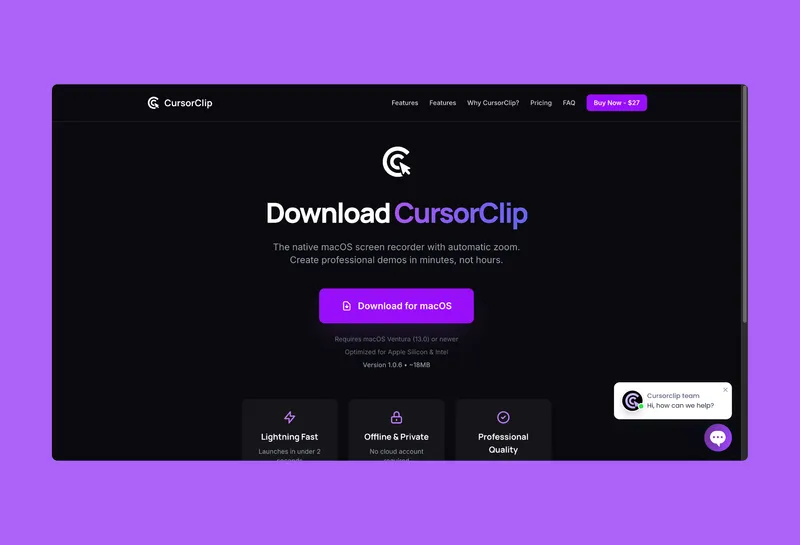
Download CursorClip from the official website to ensure you get the latest version with all security features.
Open the Downloaded File
Open the downloaded file CursorClipRecorder-1.0.6.dmg by double-clicking or right-clicking and selecting "Open".
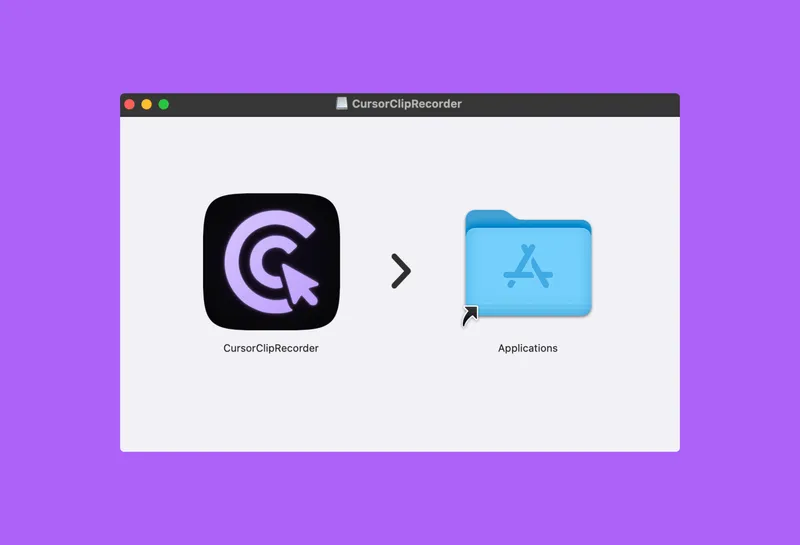
You will see a screen like this:
📱 Action Required:
Drag the CursorClip icon to the Applications folder
Launch CursorClip
Go to your Applications folder, search for "CursorClip", and open it. First, you'll see a confirmation dialog, then the permissions modal.
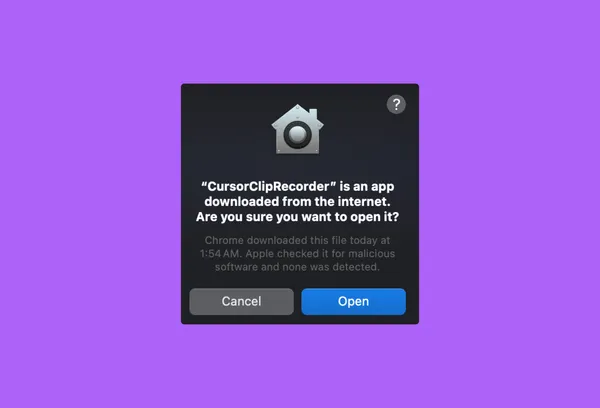
First, you'll see a confirmation dialog:
⚠️ Important:
Click "Open" in the confirmation popup to proceed
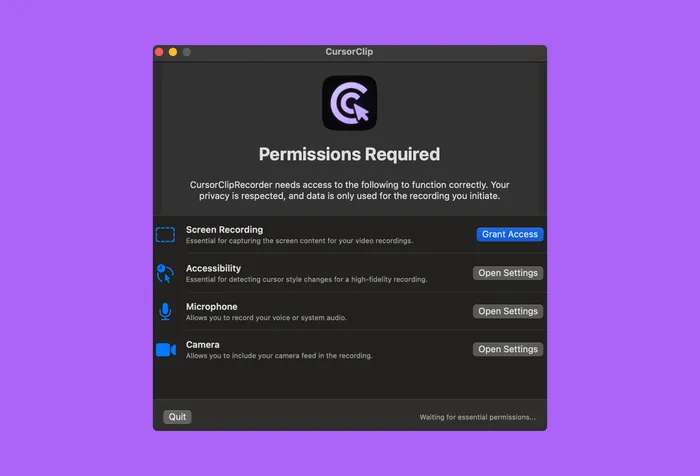
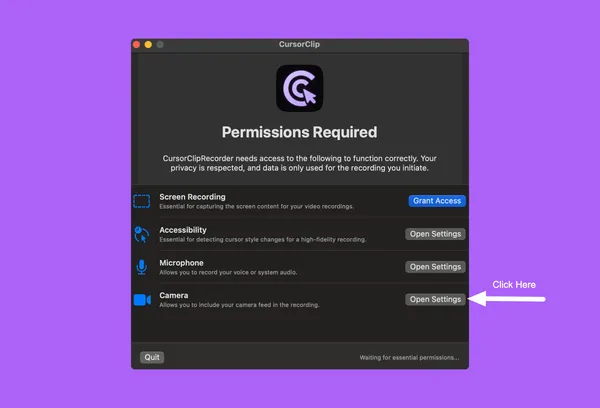
After clicking "Open", you'll see the Permissions Required modal:
Grant Screen Recording Access
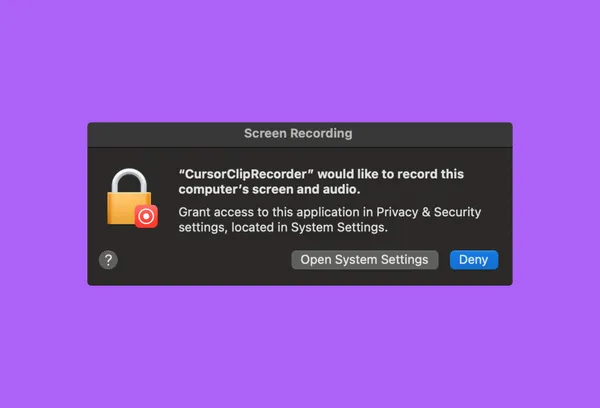
Click "Grant Access" and you'll see a popup saying "CursorClipRecorder would like to record this computer screen and audio".
Important Steps:
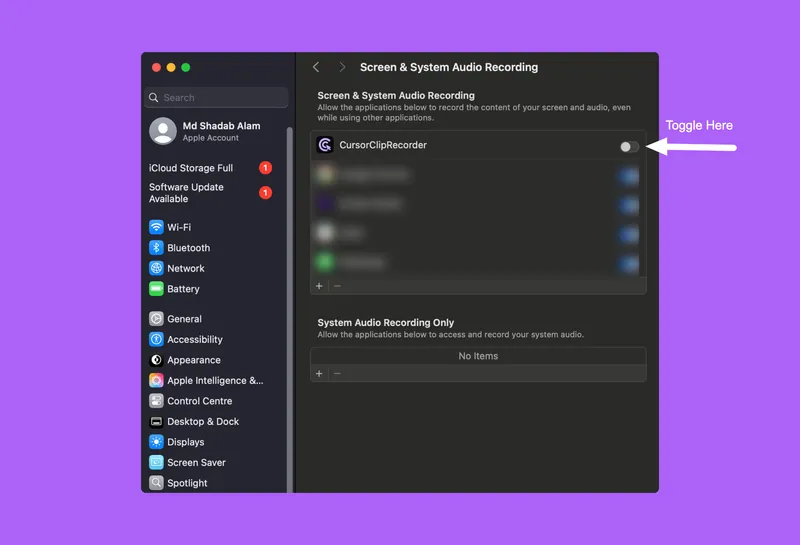
- Click "Open System Settings"
- Toggle ON "CursorClipRecorder"
- Provide your password when prompted
- Hit "Quit & Reopen"
Grant Accessibility Access
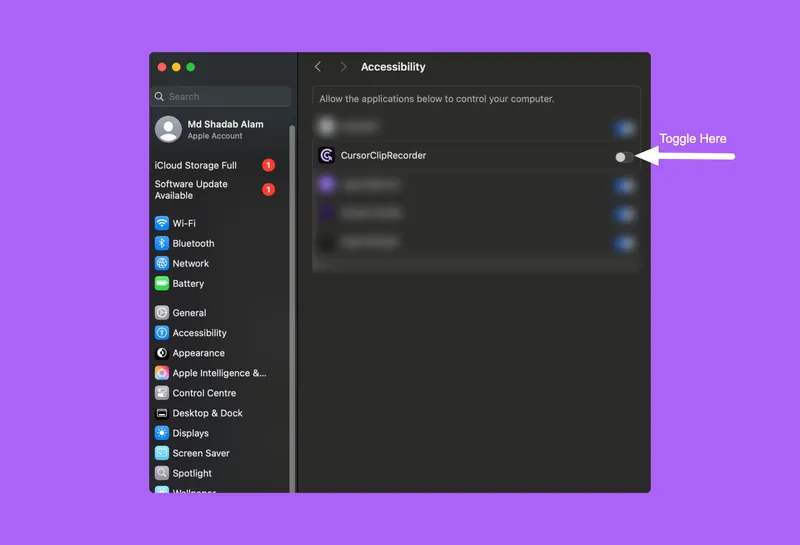
You'll see the Permission Required screen again. For Accessibility, click "Open Settings" button.
Accessibility Steps:
- Click "Open Settings" button
- Toggle ON "CursorClipRecorder"
- Provide your password when prompted
- Hit "Quit & Reopen"
Grant Microphone Access
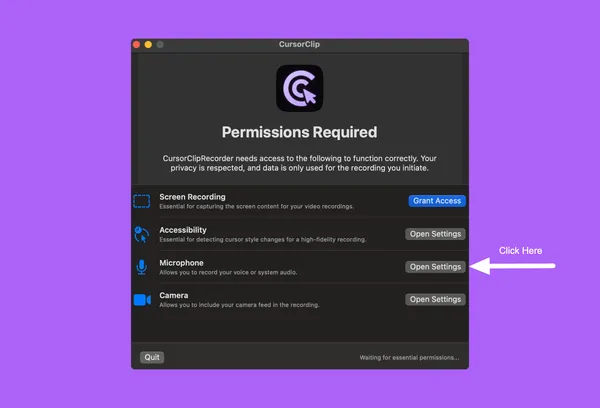
For the Microphone, click "Open Settings" and you'll see a popup saying "CursorClipRecorder would like to access the microphone".
Simple Step:
Click "Allow" when the popup appears
Grant Camera Access
For the Camera, click "Open Settings" and you'll see a popup saying "CursorClipRecorder would like to access the camera".
Final Step:
Click "Allow" when the popup appears
🎉 You're Ready to Record!
Congratulations! You have successfully installed CursorClip and granted all necessary permissions. You can now start creating professional screen recordings with automatic zoom.
Need Help?
Common issues and solutions during installation
App Won't Open
If CursorClip won't open, try right-clicking and selecting "Open" to bypass Gatekeeper restrictions.
Permission Issues
If permissions aren't working, go to System Settings → Privacy & Security and manually enable permissions.
Recording Not Working
Ensure all permissions are granted and try restarting CursorClip after granting permissions.
Still Having Issues?
Contact our support team for personalized assistance with your installation.